
What is a Knowledge Base?
A Knowledge Base is a collection of documents that Earshot can reference when drafting replies. It helps keep product details, pricing, and feature descriptions accurate — so drafts don't guess or make things up.
You attach Knowledge Bases to a Listener when you create or edit it. At draft time, Earshot pulls relevant content from those documents.
What to put in a Knowledge Base
Good starting content:
- Product overview — what it does, who it's for, how it's different
- Feature descriptions — accurate and specific, not marketing hype
- FAQs — pricing, integrations, limitations, common objections
- Positioning — how you compare to alternatives (factual, not attack-y)
- Honest limitations — what your product does not do
Creating a Knowledge Base
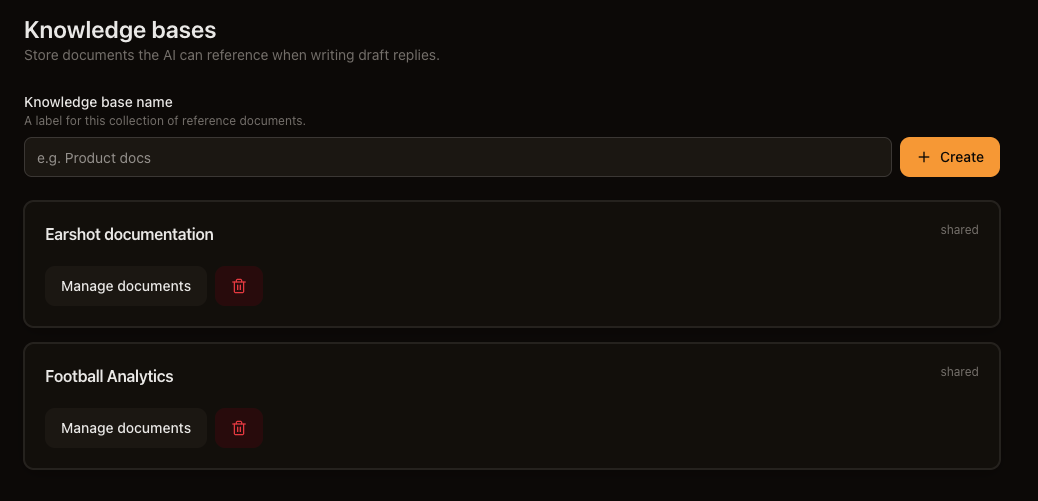
- Go to Knowledge bases in the sidebar.
- Enter a Knowledge base name — a label for this collection of reference documents (e.g. "Product docs").
- Click Create.
That's it for creation — just a name. Content comes from file uploads on the detail page.
Uploading documents
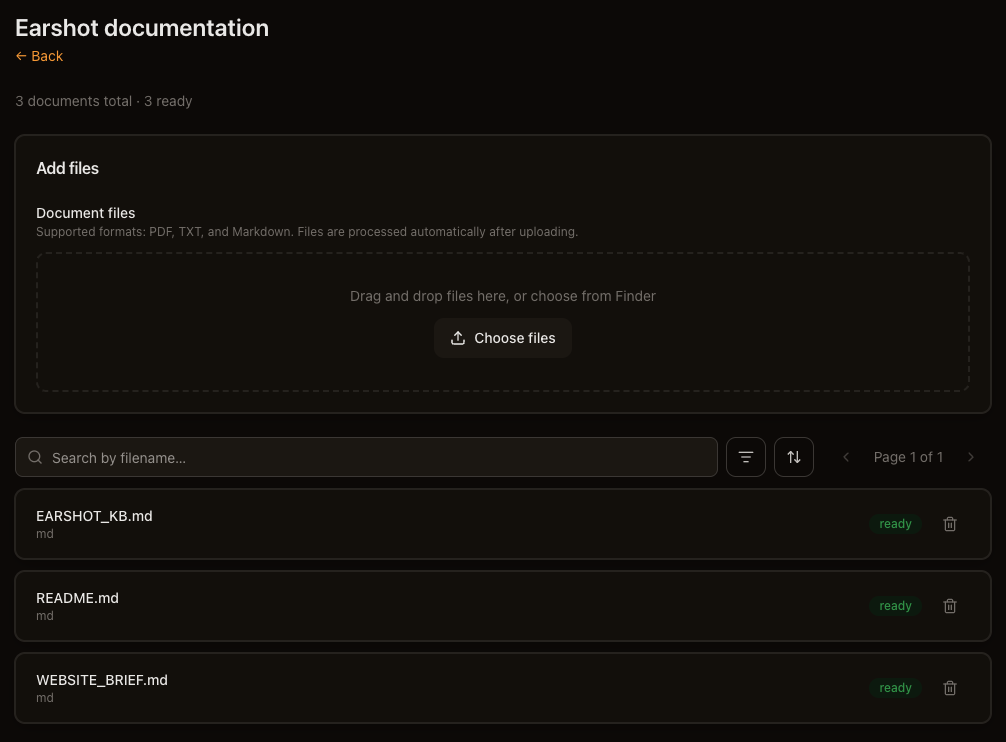
Open your Knowledge Base and use the Add files section.
Supported formats: PDF, TXT, and Markdown (.pdf, .txt, .md) only.
- Drag and drop files onto the upload area, or click Choose files.
- Files are processed automatically after uploading.
- You can upload multiple files at once.
If a file is too large, you'll see an error: "That file is too chunky for us to handle." Try a smaller file.
Duplicate filenames in the same Knowledge Base are skipped — don't worry about uploading the same file twice. To replace a document, delete the old version first, then upload the updated file.
Document statuses
Each uploaded file moves through these statuses:
| Status | Meaning |
|---|---|
| queued | Waiting to be processed |
| processing | Being read and prepared for use |
| ready | Available for Earshot to reference when drafting |
| failed | Something went wrong — click the retry button to try again |
The page header shows a summary like "3 documents total · 2 ready · 1 processing." The page polls every few seconds while documents are still processing.
You can search by filename, filter by status, and sort by name or status. Failed documents show an error message you can read before retrying.
Attaching to a Listener
When creating a Listener
On the Knowledge bases card (Solo only), check the boxes next to any Knowledge Bases you want attached.
When editing a Listener
On the Attached knowledge bases card:
- Click Remove next to a linked KB to detach it.
- Use Add knowledge base → pick from the dropdown → click Attach.
How KB content is used
When Earshot drafts a reply for a Listener with attached Knowledge Bases, it looks for relevant sections from your ready documents and weaves accurate facts into the reply.
More relevant, well-structured content generally means better drafts. Outdated or vague content means drafts may get details wrong — even with a KB attached.
You don't need to understand embeddings or search internals. Just keep your documents accurate and up to date. If you're curious how matching works, see How embeddings work.
KB vs. Persona
| Knowledge Base | Persona | |
|---|---|---|
| Purpose | What you know | How you sound |
| Format | Uploaded files | Form fields + reply examples |
| Example content | "Scout is $15/mo; Solo is $39/mo with AI drafts. Integrates with Slack." | "Reply as a friendly developer. Never pitch unprompted." |
Don't put tone instructions in the KB ("always be friendly and enthusiastic").
Don't put product facts in the Persona.
Keeping your KB fresh
Your Knowledge Base is only as good as its most outdated file.
- Update when pricing changes — wrong pricing in drafts erodes trust fast
- Add new FAQs when customers ask the same question repeatedly
- Remove deprecated feature docs — old features in drafts are worse than no KB
- Re-upload updated files (delete the old version first if the filename is unchanged)
Measuring quality from your drafts:
| Signal | What to do |
|---|---|
| Drafts cite accurate product details | KB is working — keep it up to date |
| Drafts hallucinate features or wrong pricing | Add or update the relevant document |
| Drafts sound like a landing page | KB may be too marketing-heavy — rewrite in plain language |
| Drafts are generic despite a KB | KB may be too vague — add specific facts and numbers |
Plan limits
Solo supports up to 10 knowledge bases. Each can hold multiple documents.
What's next
- Personas — shape how drafts sound
- Drafts — review and post your matches
- How Earshot works — how KBs fit with Listeners, Personas, and Drafts